
Ready to Upgrade Your IPTV Experience?
Access premium UK channels, sports, movies & more with ultra-fast streaming.
View Our IPTV PackagesChat with us on WhatsApp
Unlock the best iptv FireStick Features: The Ultimate Guide hidden aspects
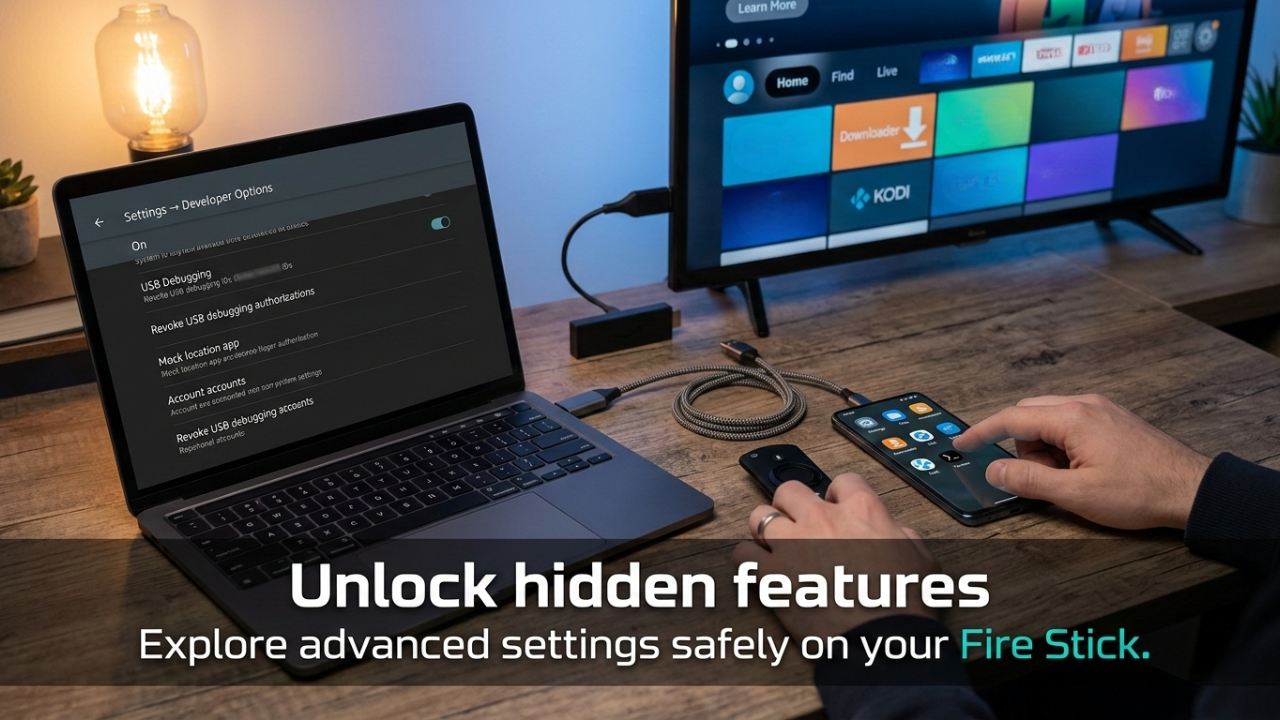
Did you know your Amazon FireStick is hiding powerful features just beneath the surface? If you want to find the best iptv firestick configuration It’s true. Beyond the standard apps and simple interface, there’s a secret world of settings that can completely change how you stream, so you have to unlock these hidden menus. This guide will show you exactly how. We’ll walk you through every step to access developer options, sideload apps, and boost your device’s performance, to make the best of it you should check out our services at Homepage.
Why Unlock Your Fire Stick Hidden Potential?
By default, Amazon keeps things simple. But for those who want more control, the hidden menus are a goldmine. They allow you to install apps not found in the Amazon Appstore, tweak network settings, and even mirror your phone’s screen. For many, this is the key to getting the best iptv firestick experience possible. It’s about freedom. Freedom to choose your own apps and customize your viewing experience. You are not just limited to what Amazon shows you; you can build your own entertainment hub.
Step 1: Accessing the Secret Developer Options Menu for the best iptv firestick
The first step to unlocking everything is to reveal the Developer Options menu. It’s hidden, but easy to enable. This menu is the gateway to all the advanced features we’ll discuss. To get started, grab your remote and follow this simple process. This is a well-known method detailed by experts at BGR in their guide to Fire Stick developer options. It only takes a few seconds.
- From the Fire Stick home screen, go to Settings (the gear icon).
- Scroll right and select My Fire TV (it might be called “Device” on older models).
- Choose About.
- Highlight the Fire OS Build option.
- Now, quickly press the select button (the center of the navigation ring) on your remote about 7 times. Keep clicking until you see a pop-up message that says, “You are now a developer!”
That’s it! You’ve just unlocked the first hidden layer. Press the back button on your remote, and you will now see a new option called Developer Options in the “My Fire TV” menu.
Step 2: Essential Settings for the Best IPTV Firestick Experience
Now that you have the Developer Options menu, you need to configure it correctly. This is where you enable the tools necessary for a truly customized device. These settings are crucial for anyone looking to install third-party software and achieve the best iptv firestick setup. According to the official documentation from Amazon’s developer portal, these are the standard steps for preparing your device for advanced use.
Enable Apps from Unknown Sources
This is the most important setting. It allows you to install applications that are not from the official Amazon Appstore. To turn it on, go into the new Developer Options menu, find Apps from Unknown Sources, and turn it to ON. A warning will pop up; this is normal. Just confirm you want to enable it. Remember, with great power comes great responsibility. Only download APK files from websites you trust.
Turn on ADB Debugging
ADB stands for Android Debug Bridge. This setting lets your Fire Stick communicate with computers and other tools for deeper control. It’s essential for developers, but for most users, enabling it is a good practice for compatibility with various sideloaded apps. You’ll find this toggle right next to “Apps from Unknown Sources.” Turn it on. It won’t affect normal streaming, but it’s ready if an app needs it.
How to Sideload Apps for the Best IPTV Firestick Content
With “Unknown Sources” enabled, you can now sideload apps. The easiest way to do this is with a simple app called “Downloader.” This app acts as a web browser and file downloader, allowing you to grab APK files directly onto your Fire Stick. Head to the Appstore, search for “Downloader,” and install it. Once installed, open the app. You’ll see a URL bar. Type in the web address of the APK you want. Many users rely on this method to get their preferred streaming apps, making it a key step for the best iptv firestick setup. After the file downloads, the Downloader app will prompt you to install it. Click install, and you’re done! Your new app will appear in your app library.
Real Stories: Unlocking a World of Entertainment with the best iptv firestick
Sometimes, the best way to understand the power of these hacks is to see how real people use them. These stories show the practical, everyday benefits of unlocking your device’s hidden potential.
Manson from Manchester Discovers the Best IPTV Firestick Setup
Manson, a 45 year old sports fan from Manchester. He wanted a way to watch international sports and movies. “I kept hearing about IPTV from my mates down at the pub,” Manson says. “But every time I searched the Appstore, I came up empty. I thought my Firestick just couldn’t do it.” After following the steps to unlock Developer Options and enable unknown sources, Manson used the Downloader app to install his chosen service. “It took ten minutes, tops. Now, on a Saturday, I can have the football matches on one channel and a movie on for the missus in the other room. Honestly, finding the best iptv firestick setup for my needs was a game changer.”
More Hidden Features You Didn’t Know Existed
The Developer Options menu is just the start. Your Fire Stick has even more secrets. For instance, there is a second, more advanced menu hidden behind a different button combination. This was recently highlighted by tech sites like BGR’s coverage of sideloading secrets as a discovery that unlocks even deeper system tools.
The Second Hidden Menu: Developer Tools
Yes, there are two! This second menu is accessed by a button combination on your remote. Press and hold the Action/Select button and the Down button simultaneously for about four seconds. Then, release them and immediately press the Menu button (the one with three lines). If done correctly, a “Developer Tools Menu” will pop up on your screen. This menu includes advanced options like “System X-Ray,” which shows your current CPU and network usage. It’s a fantastic tool for tech enthusiasts who want to monitor their device’s performance in real-time.
Screen Mirroring from Your Phone
Want to share photos or a video from your phone on the big screen? Your Fire Stick can do that. Go to Settings > Display & Audio > Enable Display Mirroring. Your Fire Stick will then wait for a connection. On an Android phone, you can usually swipe down and select “Smart View” or “Cast.” On an iPhone, you will need to install a free app from the Appstore to enable this feature. Once set up, you can easily cast any content directly to your TV.
One-Button Cache Clear for Faster Performance
Is your Fire Stick feeling a bit sluggish? You don’t need a new one. You just need to clear the cache. Amazon recently added a feature to do this for all apps at once. Navigate to Settings > Applications > Clear All Application Caches. Press it, and your device will instantly free up memory, helping it run faster and smoother. Doing this once a month is a great habit to keep your device in top shape.
Frequently Asked Questions (FAQ) about the best iptv firestick
Here are some common questions people have about unlocking Fire Stick features.
Is it safe to unlock Developer Options?
Yes, enabling the menu itself is completely safe and supported by Amazon. However, you must be careful with the settings inside, like “Apps from Unknown Sources.” Only enable them when you need them, and only install apps from trusted sources to protect your security.
Will unlocking these features void my warranty?
No, simply accessing Developer Options does not void your warranty. It is a standard part of the Fire OS software. Problems only arise if you install malicious software that damages the device.
Why can’t I see the “Developer Options” menu after clicking the build number?
Make sure you clicked the “Fire OS Build” option about 7 times quickly. You should see a toast notification at the bottom of the screen saying you are now a developer. If it doesn’t work, restart your Fire Stick and try again, pressing the button a bit more slowly.
Can I remove the Developer Options menu once it appears?
No, once enabled, the Developer Options menu will stay in your settings. You can, however, go inside and turn off all the features (like ADB Debugging and Unknown Sources) to restore your device to a more secure default state.
What is the “best iptv firestick” app to sideload?
We cannot recommend specific apps, as the “best” depends on your personal preferences for content and interface. However, the process of finding the best iptv firestick app always starts with unlocking these features. Once unlocked, you can explore and test different services to find the one that perfectly suits your viewing habits.
My Fire Stick is slow even after clearing the cache. What else can I do?
Try restarting your device (Settings > My Fire TV > Restart). You can also manage your storage by uninstalling apps you no longer use. Go to Settings > Applications > Manage Installed Applications to remove any unused apps and free up space.
Ready to Transform Your experience from average to the best iptv firestick?
You now have all the knowledge you need. Unlocking the hidden features on your Fire Stick isn’t just for tech experts; it’s for anyone who wants more from their device. Whether you are after the best iptv firestick configuration, want to cast holiday photos, or just want a faster interface, these steps put the power in your hands. It’s a simple process with massive rewards. So grab your remote, follow the guide, and see what your Fire Stick can really do. You might be surprised at the world of entertainment waiting just beneath the surface.
Have you tried unlocking these features on your Fire Stick? What was the first app you sideloaded? Share your experience in the comments below!
Hidden Feature Comparison
| Feature/Menu | How to Access | Primary Benefit |
|---|---|---|
| Developer Options | Settings > My Fire TV > About > Click “Fire OS Build” 7 times | Enable “Unknown Sources” & “ADB Debugging” for sideloading. |
| Developer Tools Menu | Hold Action + Down for 4 sec, then press Menu button | Access “System X-Ray” for live CPU/network monitoring. |
| Screen Mirroring | Settings > Display & Audio > Enable Display Mirroring | Cast your phone or tablet screen to your TV. |
| Clear All App Caches | Settings > Applications > Clear All Application Caches | Instantly boost device speed and free up memory. |